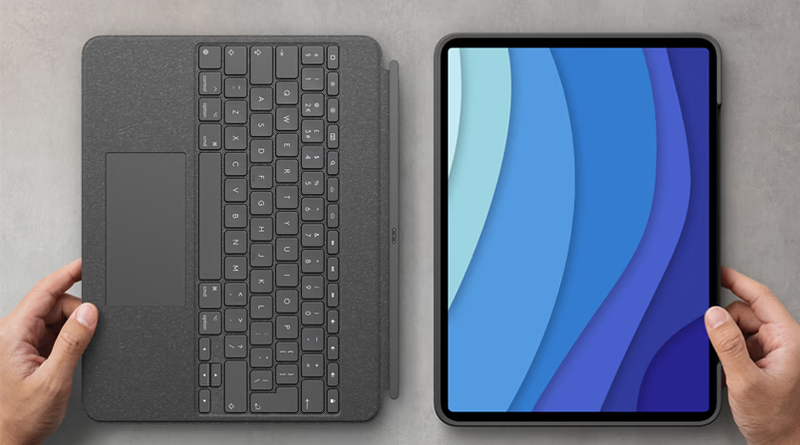
How to Connect a Keyboard to iPad
A keyboard turns an iPad into a genuine productivity tool. Typing emails, essays, or reports becomes much faster this way. This guide covers every method to connect a keyboard to iPad. It also explains what to do if your iPad keyboard is not connecting properly.
Why Use an External Keyboard for iPad
Typing on a glass screen slows down long writing tasks. An external keyboard for iPad speeds up emails, assignments, and documents. Students and professionals both benefit from faster, more accurate typing. It also makes multitasking between apps feel more natural. A physical keyboard can turn a tablet into a genuine laptop replacement for daily work.
How to Connect a Bluetooth Keyboard to iPad
Follow these steps to pair most wireless keyboards.
- Turn on your Bluetooth keyboard and enable pairing mode.
- Open Settings on your iPad and tap Bluetooth.
- Make sure Bluetooth is switched on.
- Select your keyboard’s name once it appears in the list.
- Enter any pairing code shown on the screen, if asked.
Your iPad should now show “Connected” beside the keyboard name. This process works for most brands, including Logitech and generic Bluetooth models. Once paired, the keyboard should reconnect automatically every time it powers back on nearby.
How to Connect Apple’s Magic Keyboard or Smart Keyboard Folio
Apple’s own keyboards skip Bluetooth pairing entirely. The Magic Keyboard for iPad connects through the Smart Connector instead. Simply attach your iPad to the keyboard’s magnetic connector. It pairs and powers on automatically, with no setup required. This makes it the simplest iPad keyboard setup available today.
Fixing an iPad Keyboard Not Connecting
If your keyboard won’t connect, restart both devices first. Confirm your keyboard has enough battery charge remaining. Forget the device under Bluetooth settings, then pair again. Keep the keyboard close to your iPad during setup. Outdated iPadOS software can also cause pairing problems occasionally. Turning Bluetooth off and back on often resolves minor connection glitches quickly.
Best Keyboard for iPad: What to Consider
For Apple’s own ecosystem, the Magic Keyboard offers the smoothest experience. It includes a trackpad, backlit keys, and instant pairing. For a lighter, more affordable option, third-party Bluetooth keyboards work well too. Check compatibility with your specific iPad model before buying. A folio-style case also protects your screen while doubling as a stand.
Which Keyboard Should You Buy?
If you want zero setup and premium build quality, choose Apple’s Magic Keyboard. It suits students, writers, and professionals who type daily. If budget matters more than trackpad support, a Bluetooth keyboard works fine. It still connects wirelessly and types just as accurately.
Where to Buy Keyboard for iPad in Bangladesh
Star Tech stocks genuine Apple keyboards and iPad accessories across Bangladesh. Their keyboard collection includes Magic Keyboard and other compatible options. Every product comes backed by official warranty support.
Nationwide home delivery means buyers outside Dhaka can order easily online. This makes finding the right keyboard for iPad simple and convenient.